Unibox User Guide

Unibox version: 2026.9.2
Audience: Unibox users, tenant administrators, and integration teams.
About this guide
Unibox is a multi-tenant platform for the secure exchange of structured electronic business documents, including invoices and credit notes, through the Peppol network. It also supports tax reporting and controlled integration with external systems.
This guide explains how to:
- access the appropriate Unibox environment;
- find, filter, and review business documents;
- submit XML and XLSX documents;
- manage company users, API keys, and webhooks;
- understand the document lifecycle and document statuses.
Contents
- Getting started
- Document Register
- Document details
- Business Partners
- Submit a document
- Company Management
- Document lifecycle
- Status definitions
- Glossary
- Support
Getting started
Prerequisites
Before using Unibox, confirm that you have:
- an active company profile in the applicable environment (Production or UAT);
- a modern, up-to-date web browser with JavaScript enabled;
- the appropriate role (Tenant Admin or User) assigned to your account;
- for API or webhook integration, access to a system capable of making HTTPS requests.
Environments
| Environment | Purpose | Access method |
|---|---|---|
| Production | Live operations and official document exchange | Company onboarding through the official FTA/EmaraTax flow |
| UAT | Testing integrations, features, and user training | Tenant provisioned with assistance from the Unibox support team |
Production onboarding
To prepare a company for live operation:
- Open the official EmaraTax portal.
- Follow the portal instructions to create or access the company profile.
- Complete the required company onboarding and verification steps.
- After onboarding is confirmed, sign in to the Unibox Production environment with UAE PASS.
For general information about the national programme, see the FTA's UAE e-Invoicing page.
UAT access
UAT is separate from Production and does not support self-registration. To request a UAT tenant, provide the Unibox support team with:
- company legal name;
- primary contact person;
- preferred tenant administrator email address.
The support team provisions the testing tenant and sends the applicable access instructions.
User roles
| Role | Access |
|---|---|
| Tenant Admin | Can use the Document Register and access Company Management to manage users and integrations |
| User | Can use the document features available to the company, but cannot access Company Management |
Left-side navigation
The left-side panel provides quick access to the main areas of Unibox:
- Document Register – the main document list (see Document Register).
- Business Partners – manage saved business partner records, which can be selected to help fill in invoices (see Business Partners).
- Company Management – available to Tenant Admins only (see Company Management).
- Documentation – opens this user guide directly from within Unibox.
- Contact Support – a quick way to reach the Unibox support team without leaving the application.

Document Register
The Document Register is the main Unibox screen. It provides a centralized view of incoming and outgoing business documents.
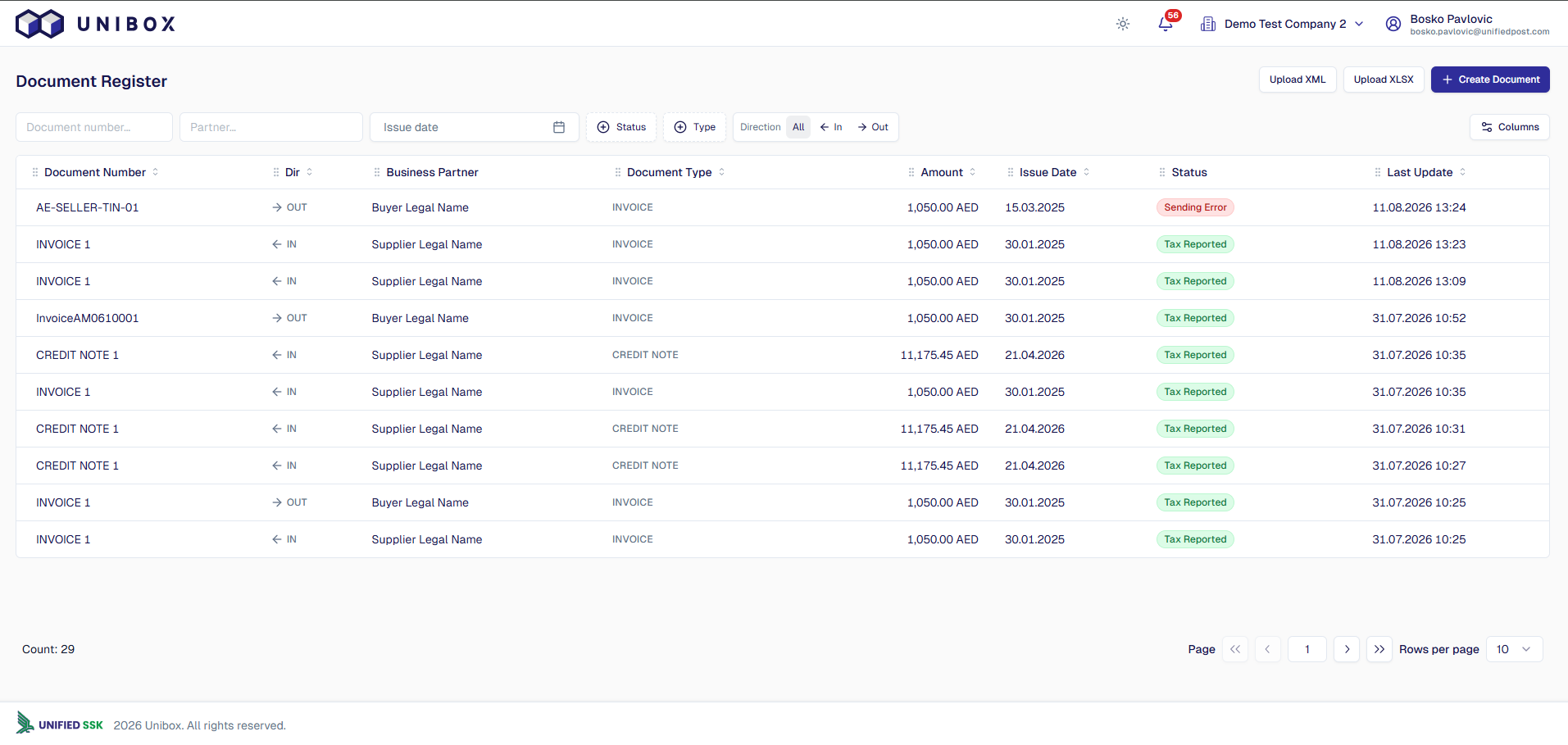
Figure 1. Document Register
Search and filters
Use the controls above the document list to narrow the displayed results.

Figure 2. Search and filter controls
Available search and filter criteria include:
- Document Number - searches by the business document number;
- Business Partner - searches by the sender or receiver name;
- Issue Date - filters documents by their issue date;
- Status - filters by one or more processing statuses;
- Document Type - filters by document type, such as invoice or credit note;
- Direction - shows all, incoming, or outgoing documents;
- Tax Reported - where available, distinguishes documents by tax-reporting state.
Document list
The document list can include the following columns:
| Column | Description |
|---|---|
| Document Number | Business identifier assigned to the document |
| Direction | Incoming or outgoing |
| Business Partner | Sender for incoming documents or receiver for outgoing documents |
| Business ID (TIN) | Tax identifier of the business partner |
| Document Type | Invoice, credit note, or another supported type (see Supported document types) |
| Amount | Document total and currency |
| Issue Date | Date stated on the document |
| Status | Current processing status |
| Last Update | Time of the most recent status or data update |
| Tax Reported | Indicates whether tax reporting has completed successfully |
Use Columns to control which supported columns are visible. Select a document row to open its details. Sorting is available for supported columns, and pagination controls appear below the list.
Supported document types
Unibox document types follow the UAE's PINT AE (Peppol International, UAE localization) specification published by the Ministry of Finance. The following document types are currently defined:
| Code | Document type |
|---|---|
| 380 | Commercial Invoice |
| 381 | Credit Note |
| 81 | Credit Note related to goods and services |
| 389 | Self-billed Invoice |
| 261 | Self-billed Credit Note |
| 480 | Invoice out of scope of tax |
Document details
Select a row in the Document Register to open the Document Details view.
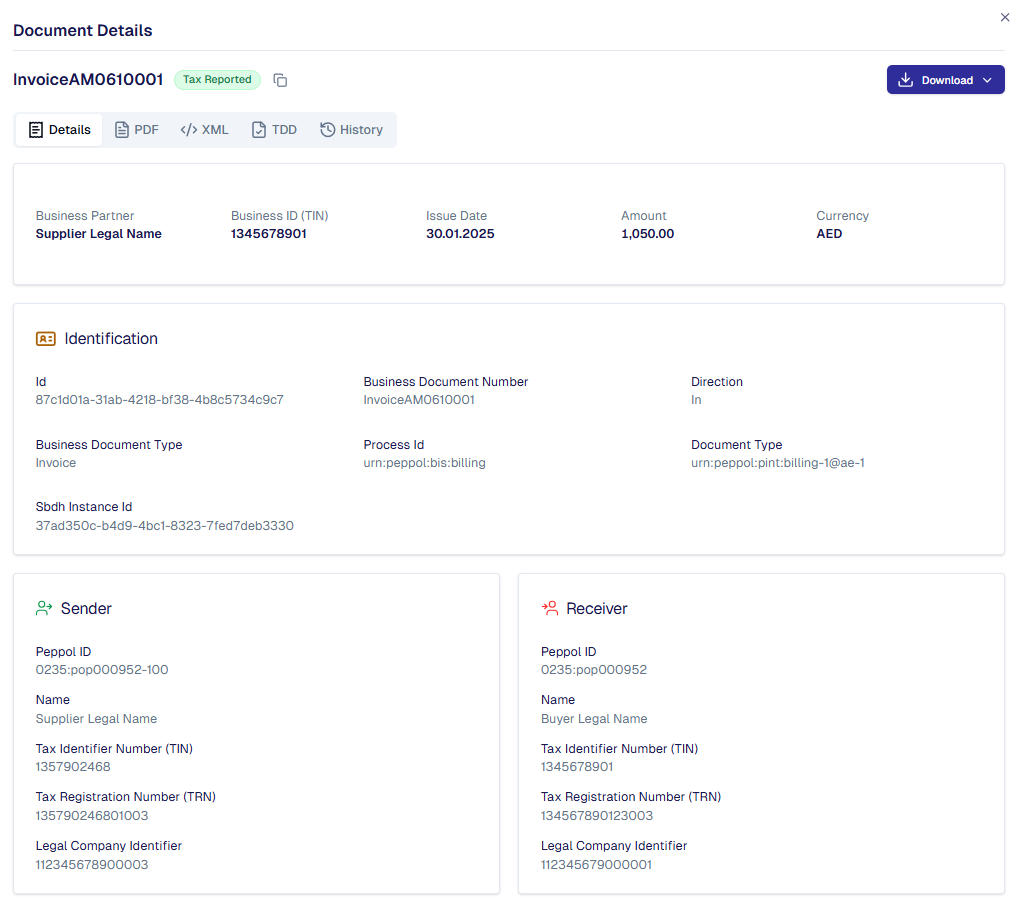
Figure 3. Document Details
Header and available actions
The header shows the business document number and current status. Depending on the document and its processing stage, the following views or download options may be available:
- PDF;
- source XML;
- Tax Data Document (TDD);
- processing history.
Summary
The summary identifies the business partner and shows the business ID (TIN), issue date, amount, and currency.
Identification
The identification section can include:
- internal Unibox document ID;
- business document number;
- direction;
- business document type;
- Peppol process ID;
- document type identifier;
- SBDH instance ID.
Sender and receiver
The sender and receiver sections can include:
- Peppol ID;
- company name;
- Tax Identifier Number (TIN);
- Tax Registration Number (TRN);
- legal company identifier.
Access Point and delivery information
When available, the document details also show the Peppol Access Point endpoint and the submission and delivery timestamps.
Business Partners
The Business Partners area, available from the left-side panel, stores reusable records for the companies you regularly exchange documents with.

Figure 10. Business Partners list
Add a business partner

Figure 11. Add Partner dialog
- Open Business Partners from the left-side panel.
- Select Add Partner.
- Enter the partner's company name and identifying details (such as TIN, TRN, or Peppol ID).
- Confirm to save the record.
Using a business partner in Create Document
When manually filling in an invoice through Create Document, you can select a saved business partner from the list instead of entering their details by hand. This pre-fills the relevant sender/receiver fields and helps reduce data-entry errors.

Figure 12. Selecting a saved business partner in Create Document
Submit a document
From the Document Register, authorized users can submit a structured document by selecting Upload XML or Upload XLSX.

Figure 4. Document submission options
Note: This section covers file-based XML and XLSX submission. The Create Document option opens a separate guided document-entry flow when that feature is enabled for the tenant, and lets you select a saved Business Partner instead of entering details manually.
Upload an XML document

Figure 5. Upload XML dialog
- Select Upload XML.
- Enable Non-Peppol sending only when the document is intended for reporting mode and must not be delivered through the Peppol network.
- Browse for the XML file or drag it into the upload area.
- Select Upload XML to submit the document.
The XML must be a supported UBL document that complies with the applicable PINT AE schema and business rules.
Upload an XLSX document
!
Figure 6. Upload XLSX dialog
- Select Upload XLSX.
- If needed, select Download Template to get the current official XLSX template.
- Browse for the completed XLSX file or drag it into the upload area.
- Select Upload XLSX to submit the document.
Use the official Unibox spreadsheet template and do not rename or remove required columns. Each XLSX submission can contain one invoice per file; because only a single invoice is ever uploaded at a time, there is no separate file size limit.
What happens after submission
Unibox performs the following processing steps:
- validates the file structure and applicable business rules;
- creates the internal document record;
- processes and enriches the document data;
- routes a standard outgoing document through the Peppol Access Point, or processes a non-Peppol submission in reporting mode;
- updates the document status as processing continues.
Invalid files are rejected with an appropriate validation status. Open the document details to review the available error information.
Company Management
Company Management is available only to users with the Tenant Admin role. It contains the Accounts, API Keys, and Webhooks areas.
Manage users

Figure 7. User management
Tenant administrators can:
- view users within the company;
- filter by name, email, role, and status;
- assign roles and manage access;
- review whether an account is active or inactive.
Invite a user
- Open Company from left side panel and select Accounts.
- Select Add Account.
- Enter the user's email address.
- If an authentication-method selector is shown, select the method applicable to the environment. Production uses UAE PASS; test credentials may be enabled for UAT.
- Assign the appropriate role.
- Confirm the invitation.
The invited user receives an email with the next steps.
Manage API keys
API keys allow an external system, such as an ERP, to authenticate to the Unibox Integration API.
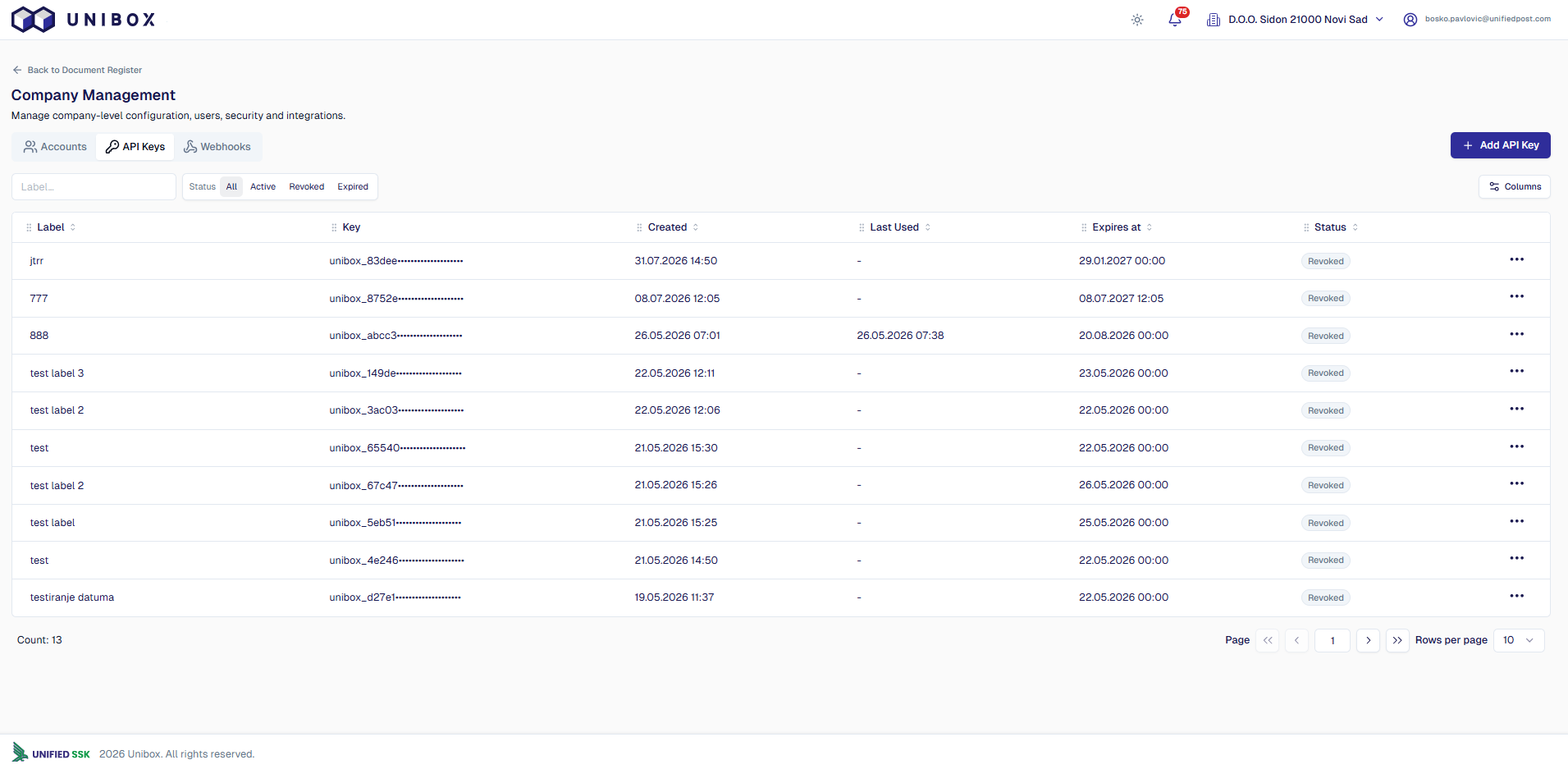
Figure 8. API key management
The API key list shows information such as:
- label;
- masked key value;
- creation timestamp;
- last-used timestamp;
- expiration timestamp;
- status.
Create an API key
- Open Company Management and select API Keys.
- Select Add API Key.
- Enter a meaningful label that identifies the integration.
- Select an expiration date.
- Confirm the creation.
- Copy the full API key and store it in a secure secrets manager.
Important: The full API key is displayed only once. Never store it in source code, screenshots, tickets, or ordinary documents. Revoke a key immediately if it may have been exposed.
Manage webhooks
Webhooks notify an external system about relevant document events without requiring continuous polling.
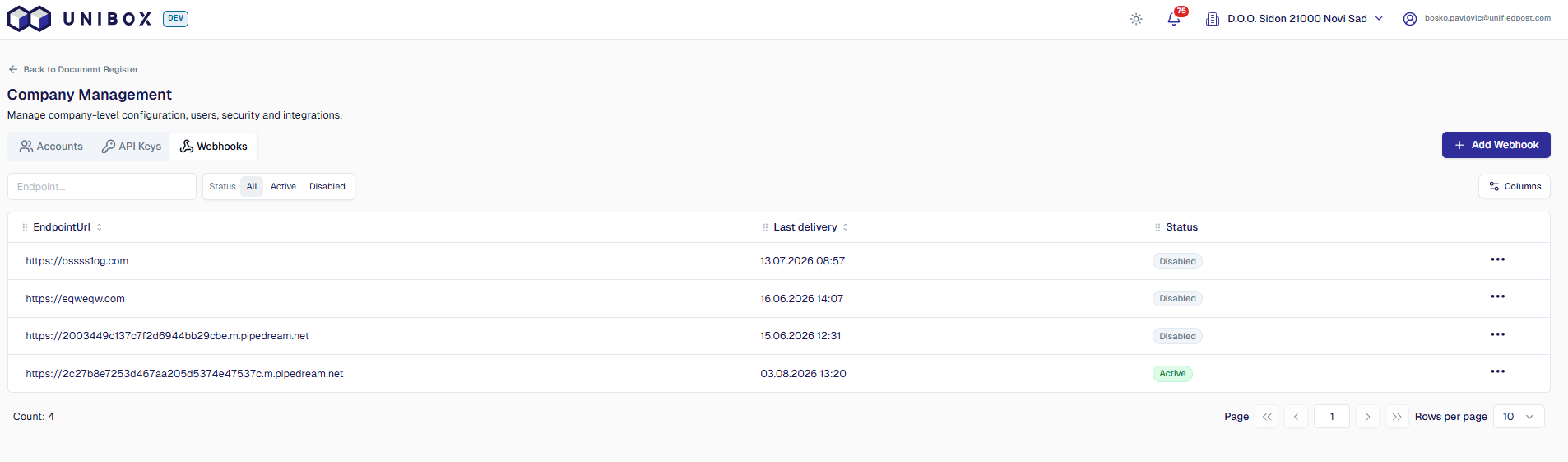
Figure 9. Webhook management
Tenant administrators can configure HTTPS endpoints and monitor each webhook's status and most recent delivery attempt.
Note: Your receiving endpoint should verify that incoming requests genuinely originate from Unibox and should handle retried or duplicate deliveries safely.
Add a webhook
- Open Company Management and select Webhooks.
- Select Add Webhook.
- Enter the receiving endpoint URL. Only HTTPS endpoints are accepted.
- Enter a description if the field is available.
- Confirm the configuration.
The receiving system should process duplicate notifications safely and return a successful HTTP response only after accepting the event.
Document lifecycle
A typical outgoing document follows this lifecycle:
- Submission - the user, UI, or integration submits the document.
- Validation - Unibox checks the schema and business rules.
- Processing - Unibox creates the document record and performs required enrichment.
- Exchange - Unibox routes the document through the Peppol Access Point when Peppol delivery applies.
- Tax reporting - the TDD is reported to C5 when required.
- Tracking - Unibox records acknowledgements, delivery events, errors, and status updates.
Incoming documents enter Unibox through the Peppol Access Point, are validated and stored, and then become available in the Document Register.
Tax reporting is asynchronous. A successful Peppol exchange does not by itself mean that tax reporting has completed.
Status definitions
Statuses do not always occur in a single sequence. The applicable path depends on document direction, delivery mode, and whether tax reporting is required.
| Status | Meaning | Applies to | Recommended user action |
|---|---|---|---|
| Initial | The document record exists, but validation or processing has not started. | Incoming & outgoing | Wait briefly and refresh the document status. |
| New | Unibox accepted or received the document and queued it for further processing. | Incoming & outgoing | No action is normally required. |
| Exchanged | The document was transmitted through Peppol and acknowledged by the receiving Access Point. Tax reporting may still be pending or may not apply. | Outgoing | Monitor the status if tax reporting is required. |
| Validation Error | The document failed schema or business-rule validation, such as XSD, Schematron, or PINT AE validation. | Incoming & outgoing | Open the error details, correct the document, and submit it again. |
| Receiver Validation Error | Delivery completed, but the receiver reported a validation problem. | Outgoing | Review the receiver's error information and coordinate a corrected document if required. |
| Tax Reported | The applicable tax report or TDD was accepted by C5/FTA. | Incoming & outgoing | No action is normally required. |
| Sending Error | Validation succeeded, but Unibox or the Access Point could not complete transmission to the intended destination. | Outgoing | Review the error details and retry or contact support. |
| Tax Report Error | Peppol processing may have completed, but C5 rejected the TDD or tax reporting otherwise failed. | Incoming & outgoing | Review the tax-reporting error and correct or resubmit as instructed. |
Glossary
| Term | Meaning |
|---|---|
| Access Point (AP) | A Peppol service component used to send and receive business documents over the Peppol network |
| C5 | The UAE tax-reporting platform or service that receives tax data from service providers |
| EmaraTax | The UAE Federal Tax Authority's digital tax services portal, used for company onboarding |
| FTA | Federal Tax Authority, the UAE government body responsible for tax administration, including e-invoicing |
| Peppol | An international network and standard framework for exchanging business documents electronically between systems |
| PINT AE | The UAE specialization of the Peppol International Invoice specification |
| Reporting mode | Submission mode used for documents that are reported for tax purposes but not delivered through the Peppol network |
| SBDH | Standard Business Document Header used to carry routing and document metadata |
| TDD | Tax Data Document submitted for tax reporting |
| Tenant | A company's dedicated, isolated instance within Unibox |
| TIN | Tax Identifier Number |
| TRN | Tax Registration Number |
| UAE PASS | The UAE's national digital identity and signing platform, used to sign in to Unibox Production |
Support
You can also reach support directly from Unibox by selecting Contact Support in the left-side panel.
If a problem cannot be resolved from the status and error details, contact your Unibox support representative and provide:
- company or tenant name;
- internal document ID;
- business document number;
- current status;
- time when the issue occurred;
- relevant error message.
Do not send API keys, passwords, or other secrets in a support request.
Changelog
| Version | Date | Summary |
|---|---|---|
| 0.1.4 | — | Previous release |
| 0.1.5 | 2026-09-15 | Removed country selection from XML/XLSX upload; added XLSX template download step and single-invoice/no-file-size-limit note; added Supported document types table; added Business Partners section and left-side navigation overview; added Prerequisites, expanded Glossary, and Applies-to column on Status definitions |